Transactions
Home’s Recent Transactions card opens the transactions page — an all-time feed with a month heading that follows your scroll.
Recent Transactions lands on All. Subscriptions & Bills opens the separate Recurring page. Split and Add Receipt live on the posted-row detail (and the row long-press menu). See Home for the card in context, and Insights for the stack above it.
Recent Transactions
Up to five posted rows for the month on the dial: merchant, Need/Want path, amount. The card title, View all, and empty chrome open the transactions page. A row opens that transaction.
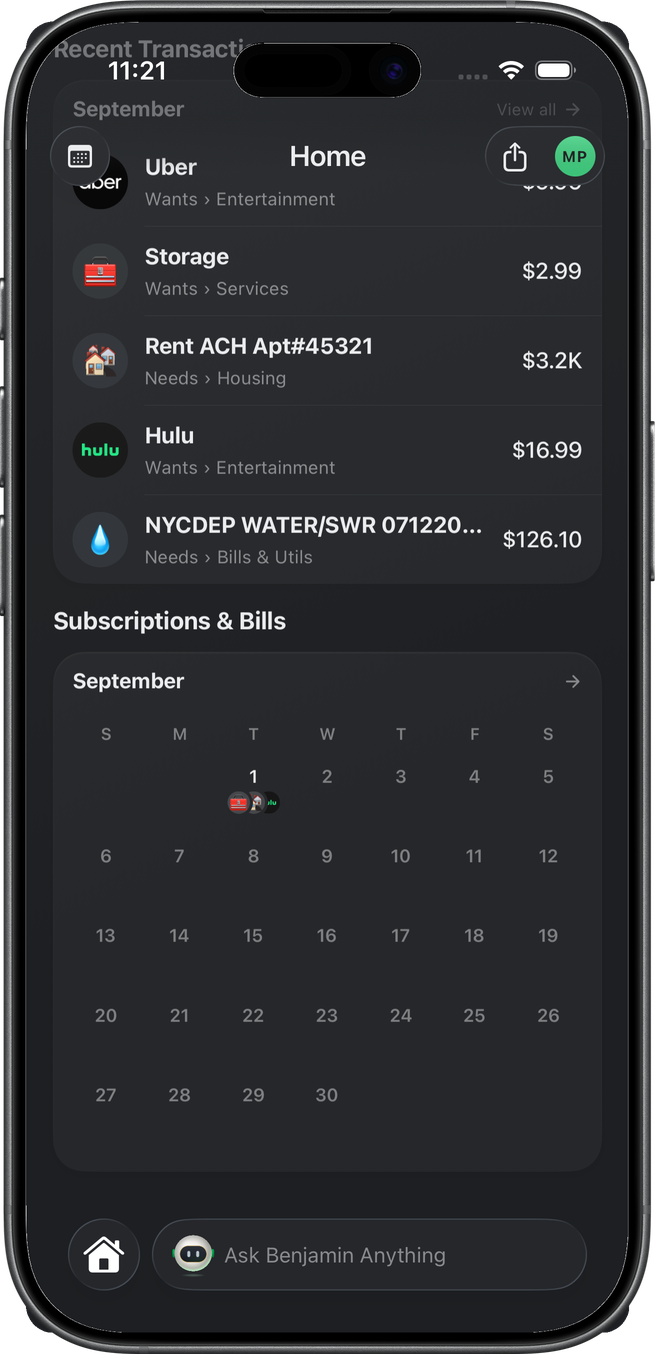
The card follows the gauge’s selected month. Historical months still show posted rows for that month.
The page
transactions is a stack screen. The top row holds a back button, a centered Transactions title, and a filter button; underneath, after a short gap, a large month heading with that month’s totals, then an All | Spending | Income segmented control, then the feed.
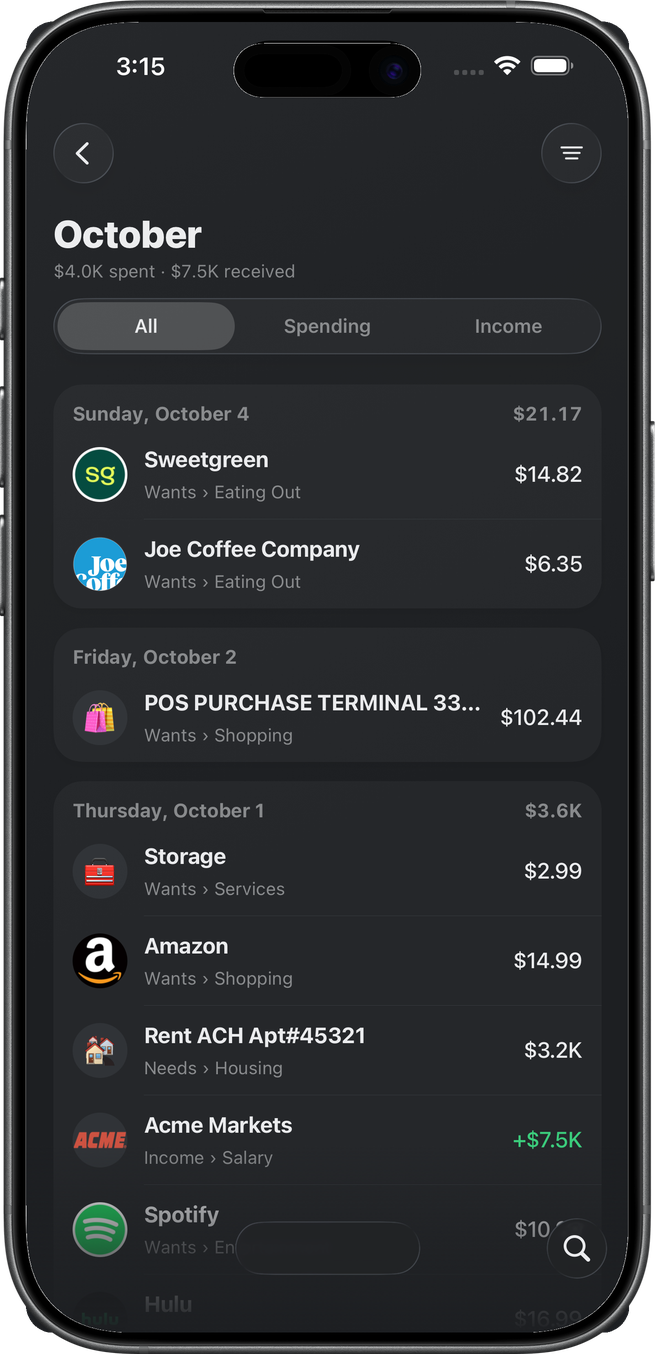
The heading is a label, not a filter. The feed is every posted transaction, newest first, and the heading names whichever month is at the top of the viewport — scroll into September and it crossfades to September. The line under it comes from the same monthly summary Home uses: on All it reads spent · received; on Spending just spent; on Income just received. The current year’s months show the name alone; older months add the year.
Each day card is titled with the weekday and full month — Sunday, October 4 — and shows a day total when it has more than one row.
Spending restricts the feed to debits; Income to rows classified as income. The filter sheet applies to all three segments. Search in the Ask Benjamin dock filters the feed server-side.
Filters
The filter button (top right) opens a page sheet titled Filters. Edits are a draft until you press the button at the bottom; closing with the X discards them. While the draft has anything set, a Reset link appears beside the X and clears the whole draft in place. The filter button on the page shows a count badge once filters are applied.
Two cards:
- Quick toggles — segmented controls for Direction (All / Money out / Money in) and Status (Any / Posted / Pending). Direction is hidden on Spending and Income, which already fix it.
- Rows — Date, Amount, Merchant, Category. Each row shows its current value on the right (muted Any time, Any amount, All merchants, All categories when unset; green when set, with a small X to clear just that row). Tap a row to open it; one row is open at a time.
Anything selected reads green — the chosen segment, selected chips, merchant check circles, the row summaries, and the count badge on the filter button.
- Date — chips for Last 7 days, Last 30 days, This month, Last 90 days, This year, and Custom. Custom reveals From / To fields that open the date picker. A range the chips don’t describe keeps Custom lit, and the row reads the range (Sep 8 – Oct 1).
- Amount — $ Min and $ Max fields with Under $25, $25–100, $100+ chips. Typing clears the chip highlight; the row reads Under $100, $25–100, or Over $25.
- Merchant — a search field over the merchants you have transacted with in the last year, most frequent first, each with its logo (or its category emoji when there is no logo) and a check circle. Multi-select; the row reads Sweetgreen +1. Long lists fold behind See N more.
- Category — chips grouped under Needs, Wants (your budget groups), and Income (the income categories you have transacted in), each chip led by its emoji (your group’s custom icon where you set one), each group with a Select all / Clear link and a four-chip fold. Spending hides the Income group; Income hides Needs and Wants.
The bottom button reads Show transactions and applies the draft. The sheet was not captured for this walk.
Posted vs upcoming
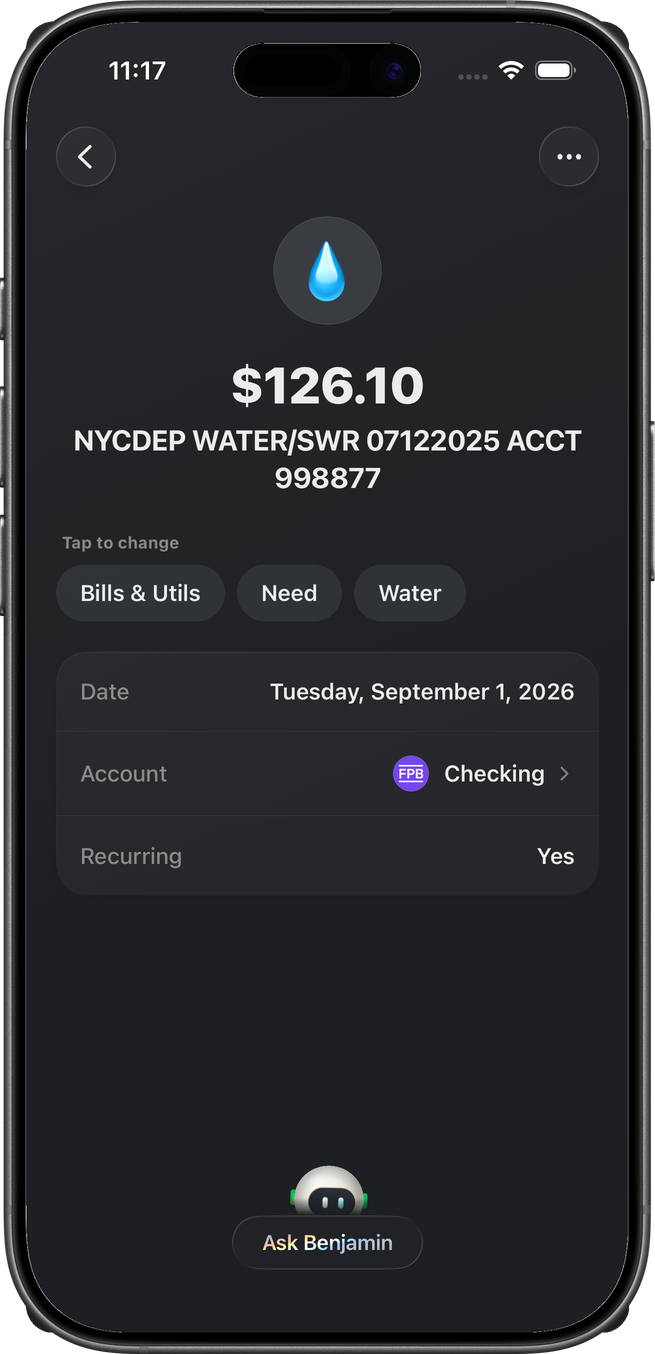
A posted row opens transaction detail — amount, Need/Want chips, account, recurring flag. A money-in row that Benjamin classified as a merchant refund (a return hitting your card) shows a green Refund pill under the merchant name; rows in the feed stay unbadged. Refund alerts toggle in Plan Settings.
An upcoming or pattern row (on the Recurring page) opens recurring detail (patternId, optional date). That screen is not this walk.
Split
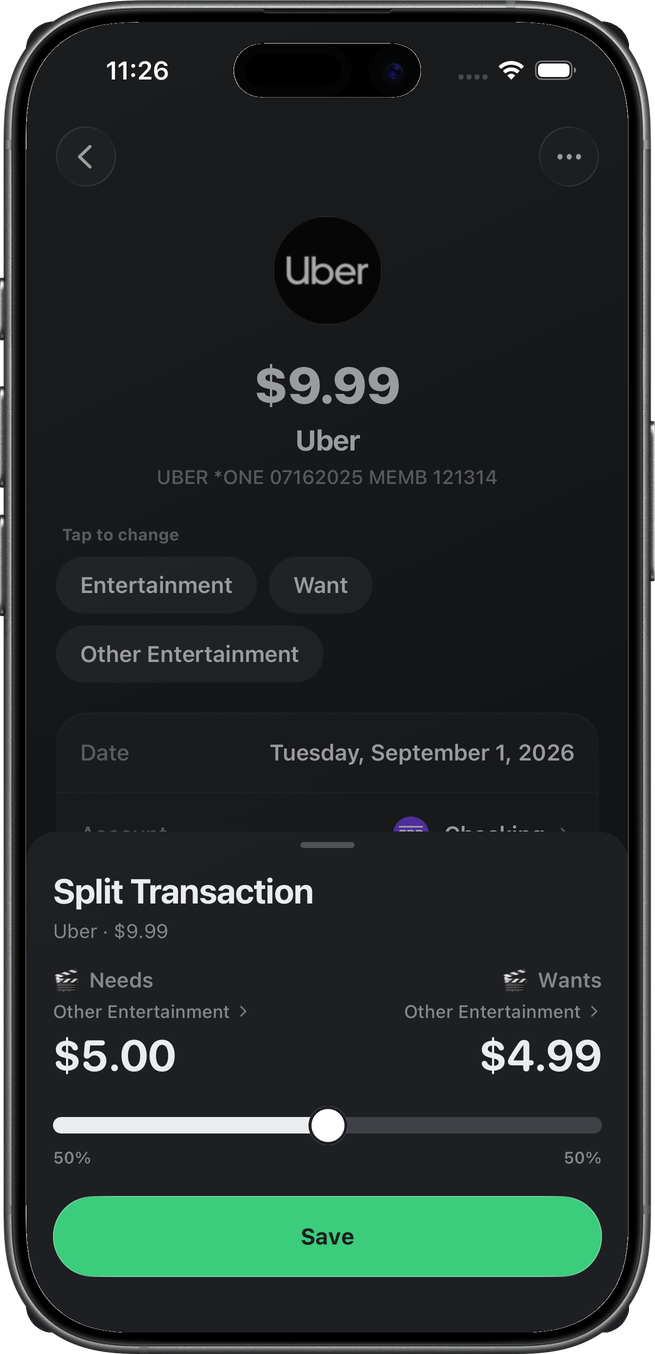
A posted Need or Want can be split so part counts as a Need and the rest as a Want. Overflow Split (or swipe / long-press on a Home or feed row) opens the Split Transaction sheet. Drag the slider to set the two amounts; each side keeps a category. Save writes both lines. Income, transfers, and hidden rows cannot split.
If the row is already split, the menu says Edit Split and Remove Split. Remove restores a single Need or Want.
Receipt
One image per posted transaction. Overflow Add Receipt (also on the row long-press menu) offers Choose from Photos or Browse Files. JPEG, PNG, WebP, or HEIC. After attach, the image sits on the detail page; tap it to view full screen. A second attach is refused — there is no replace in the menu, only the one receipt.
Notes
Any posted transaction and any recurring pattern can carry one free-text note. On transaction detail, overflow Add Notes reveals a Notes card under the receipt with the cursor ready; type, then tap Save (or Done on the keyboard). Once a note exists the card is always there — tap the text to edit, and the menu item reads Edit Notes. Clearing the field removes the note and the card goes away.
Recurring detail works the same way: overflow Add Notes / Edit Notes, and the Notes card sits between Details and History. A note on a pattern is about the subscription; a note on one charge is about that charge — renaming fans out across a pattern, notes do not. Everyone in the space sees the same note. Notes cap at 2,000 characters.
The same card appears on account detail and on a goal's page (Plan). The Notes card states were not captured in this pass.