Plan Settings
Controls for this plan — members, budgets, and which alerts can fire.
Not Account (avatar → Account). Not the Home stack itself; Rules decide what can land there. Screen title is Plan Settings. SpaceSettingsContent.
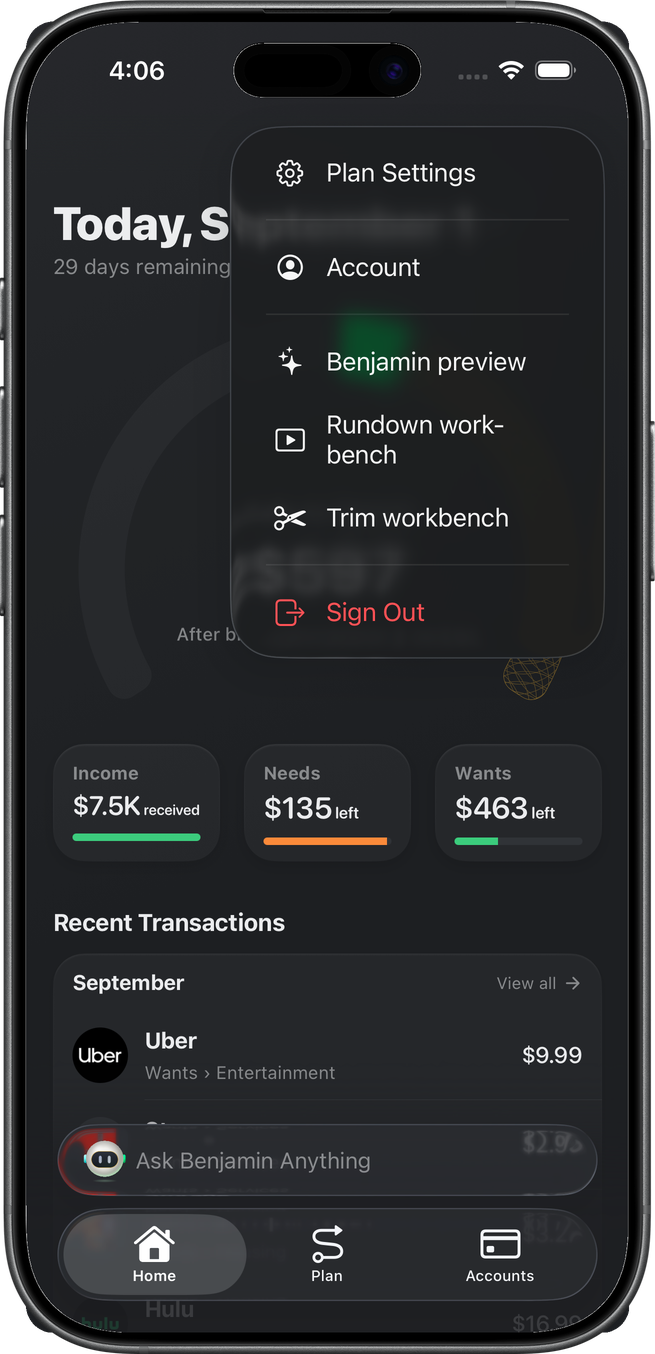
Open
Home avatar → Plan Settings. The Plans drawer ellipsis opens the same sheet for that plan.
General
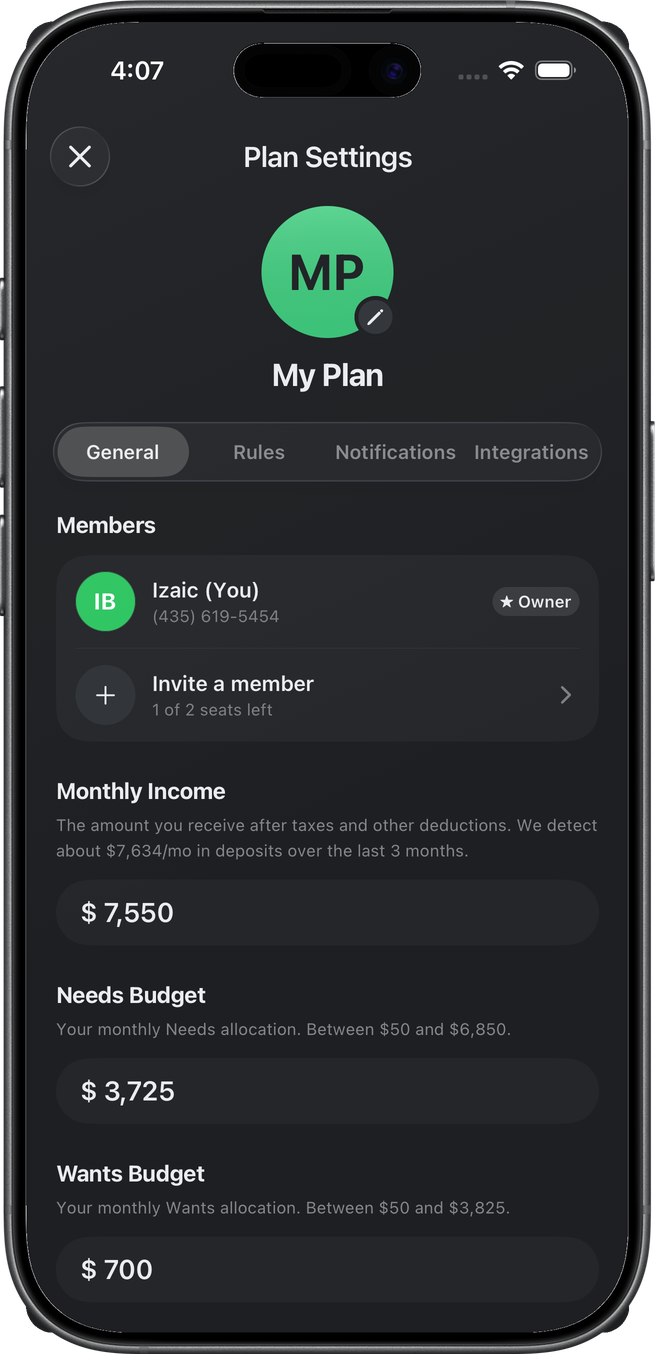
Plan name and avatar — a Plan Name section at the top of this tab, avatar left (tap to change), the name in a standard filled field beside it (saves on blur) — then members (You, Owner, Invite a member), monthly income, and Needs / Wants budgets. The numbers are the same expected income and allocations as Income, Needs, and Wants — editable here too.
The captures below predate the move — they show the old large centered avatar and name pinned above the tab bar on every tab. That hero is gone; identity now lives only on General.
This capture is a one-seat owner plan (1 of 2 seats left). Manage Space (leave / delete) did not appear.
Rules
Everything on this tab is shared plan config — which rules fire, and through which channels. Your personal push/email opt-ins are separate: they live on the Account page (Account → Notifications) and only filter what you receive. Push and Email on a rule are disabled until you opt in — the subtitle reads Enable push notifications in account settings or Enable email notifications in account settings, and you can't turn that switch on.
Every rule row carries a quiet On / Off status (On while the rule is active), and tapping the row opens a half sheet: an Active master switch on top (off pauses the rule entirely — no card, no push, no email), then the delivery channels — In-app (shows in your activity feed), Push (alert on your phone, or the opt-in prompt above), and Email (your account email, or the opt-in prompt above). Switches save as you flip them; Done just closes. Channels are independent: a rule can push or email without showing in the feed — but at least one channel must stay on (flipping the last one shows "Keep one delivery method").
Rules you created yourself — merchant watches and per-budget rules — also get a Delete rule button in the sheet (with a confirm). Deleting is permanent; system rules like Payday or Refunds can only be paused. A deleted budget rule stays gone even though its budget lives on.
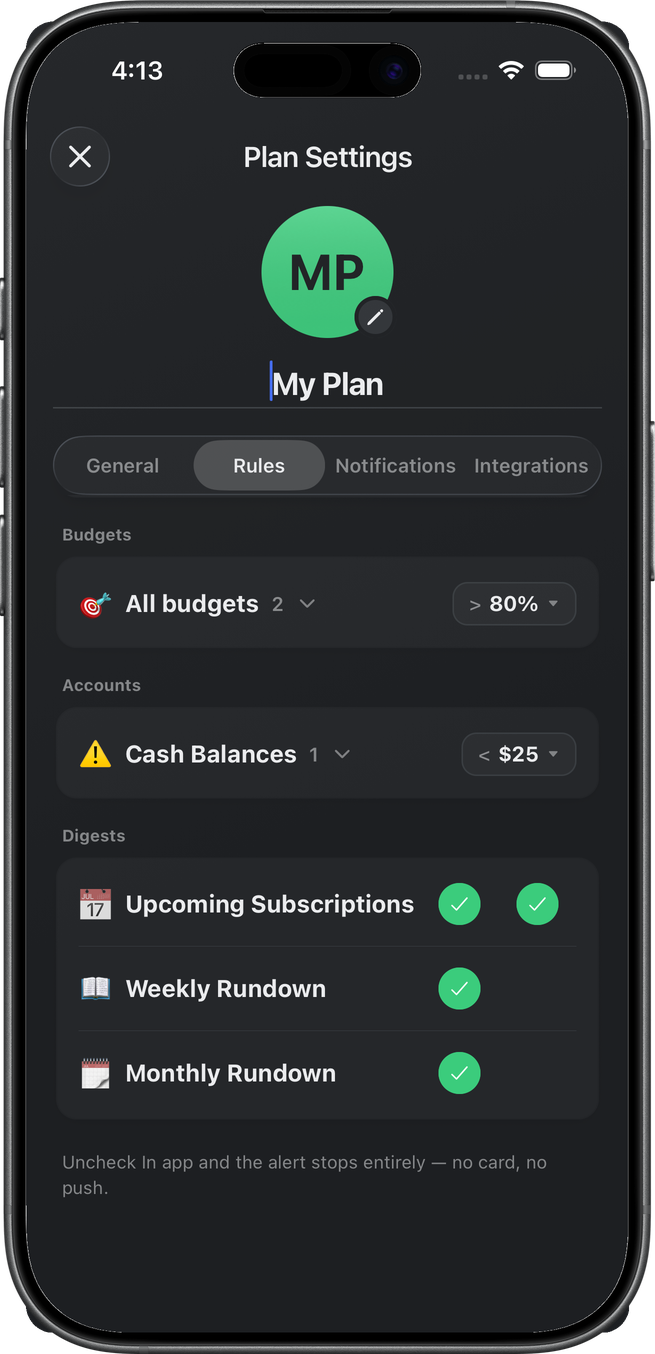
Group rows — All budgets, Cash Balances, Credit utilization — read On while any child is active and open a bulk sheet that applies to every child; the circular chevron expands the per-budget / per-account rows, each opening its own sheet marked "Overrides All budgets" (or the group's name).
Budget blown (≥100% of a budget) has no row. It always fires.
The captures below predate this redesign — they show the old In app / Push checkbox columns instead of the On/Off status and the channel sheet. Thresholds are unchanged.
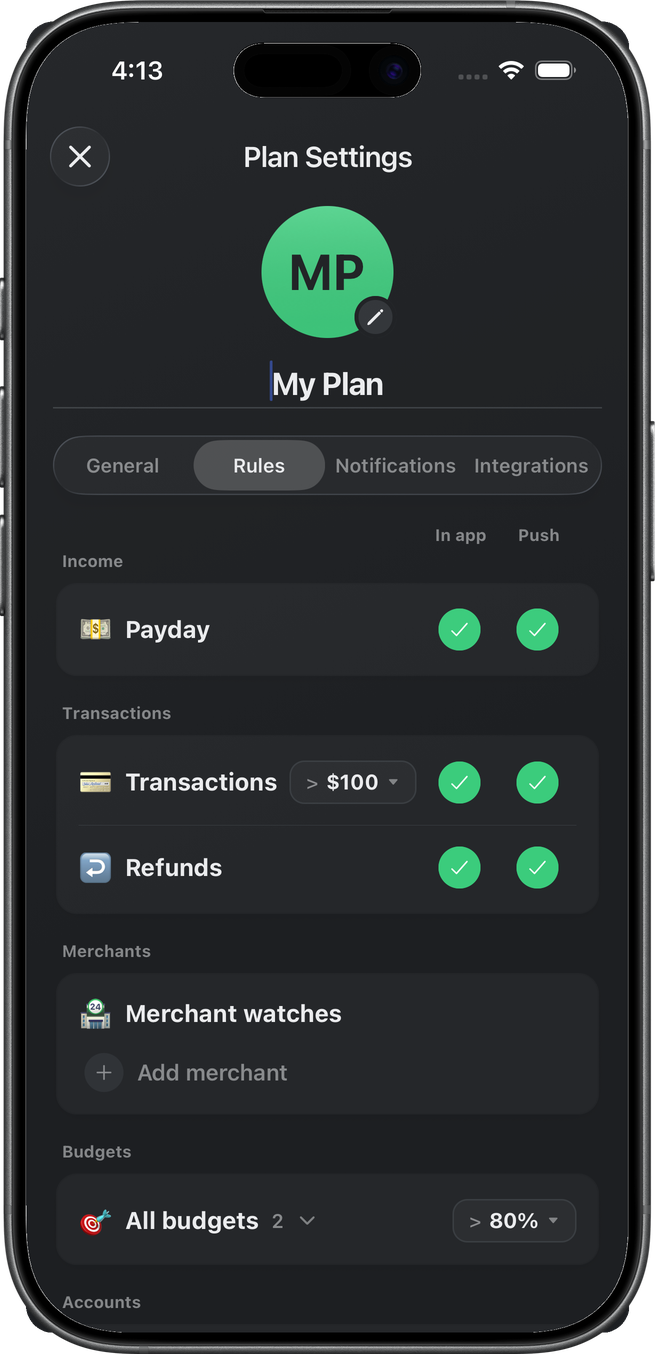
This capture, further down: merchant watches (empty, + Add merchant), All budgets at 80%, Cash Balances under $25, then Digests. Credit utilization was not on this space. The Subscriptions section (Price increases > 5%, below Accounts) postdates this capture.
Price increases (Subscriptions section) fires when a subscription or bill charges more than last time — at least the chip's percent (default 5%). The alert says what changed and, for variable utilities, why it might be normal (a heating bill in January); tapping it opens that subscription's detail.
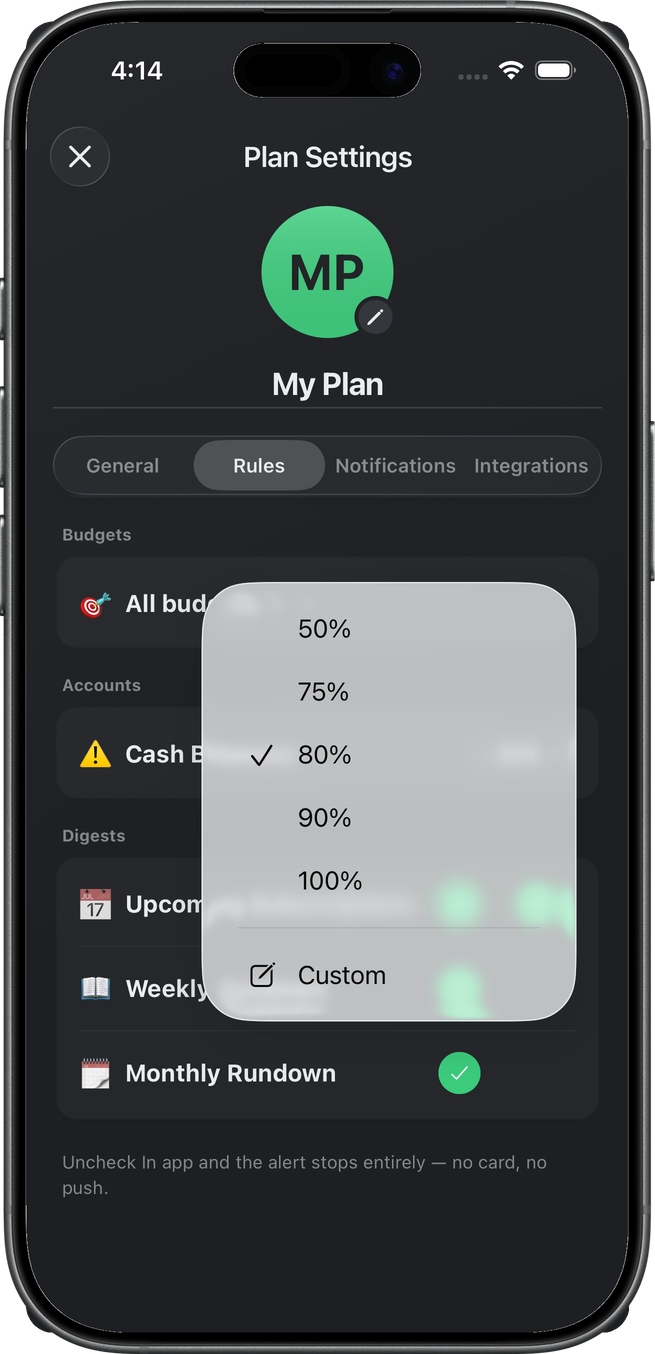
A threshold chip opens a half sheet. This one is budget percent — 50 / 75 / 80 / 90 / 100, plus Custom.
Weekly and Monthly Rundown sit under Rundowns, the first section on the tab; each row carries its own inline switch (no sheet) — off skips generation entirely. Their push goes to each member whose own push master is on. Those rows appear when reviews are available for the space.
How a rule fires
A matching event (Plaid sync) writes a Home card while that row's In-app is on (off, the alert still counts for dedupe/history but no card shows). Push goes out to each member whose own push master (Account → Notifications) is on, when the row's Push is on. Email goes out to each member who has opted into email, when the row's Email is on — and several alerts in the same sync arrive as one email, not one each. The email is a short, friendly recap of what happened (amounts, merchants, accounts) inside a gray card, with Open Wellthplan below it. Swipe or × on Home dismisses the card — that is not a setting.
Your personal opt-ins (Account → Notifications)
The push/email masters are per person, not per plan. Account → Notifications shows How alerts reach you: an In-app row (always on — the activity feed is the record), a Push switch with your device name (in-app cards keep showing either way), and an Email switch showing your account email (a bundled recap — opt-in, off by default; alerts from the same sync arrive as one email). Turning yours off never silences your partner. It also disables the matching per-rule Push or Email switch until you opt in; send-time filtering still drops you even if a partner left that channel on.
Below that, What gets sent shows Rules that send alerts (a count of active rules across all your plans — configure them per plan in Plan Settings → Rules) and Quiet hours — a personal window (default 10:00 PM – 7:00 AM, in your profile's timezone, wrapping midnight) during which pushes to you are muted entirely. Nothing is queued for later: the in-app card still lands and emails still send; only the push is skipped. Scheduled custom rules still run on time — you just won't get buzzed.
The old plan-level Notifications tab is gone. Insights history — the archive of delivered cards, tap a row to re-follow — is a full page: the bell in the home header (next to the plan avatar) opens Notification History. History is not a preference; it does not hide future cards.
The bell replaced the header's share button; Share Wellthplan now lives on the Account page under Support (advisor agents share their referral sign-up link there, everyone else the app link).
Below Support, a Legal card holds Privacy Policy and Terms of Service. Each opens the matching wellthplan.com page in an in-app browser sheet that slides up from the bottom — close it with the × and you are back on Account.
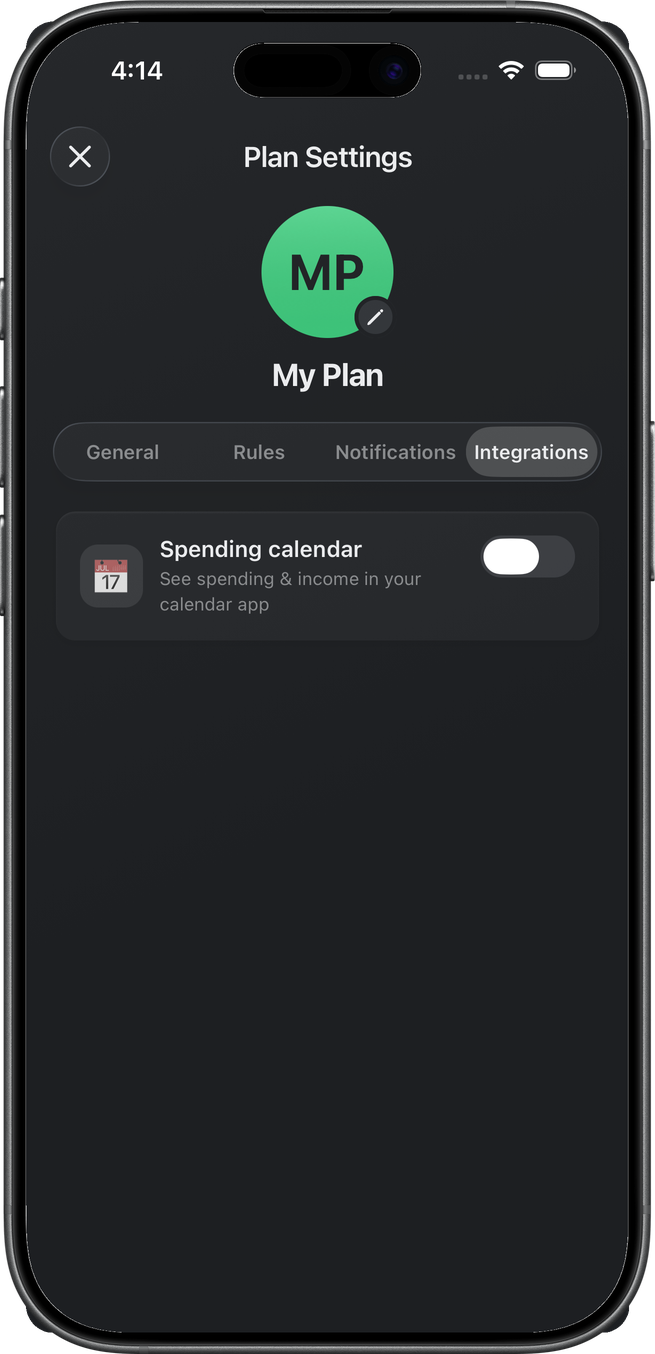
Integrations
Beta-gated. This space showed Spending calendar (off) — spending and income in the calendar app.