Plan
After sign-up, Benjamin lines up first moves from a few questions.
This page is Build Your Plan (plan-setup): Home or Plan tab → seven questions → review. Build my plan creates draft goals and selected starters and lands on the Plan tab. This walk stops at review — it does not finalize. Each selected starter is its own wizard: Trim Spending, Debt Review, Emergency Fund, Life Insurance, Will & Trust, Retirement. A card missing from the Plan tab (deselected on review) is overflow Add to Plan. Allocation is Savings.
Entries
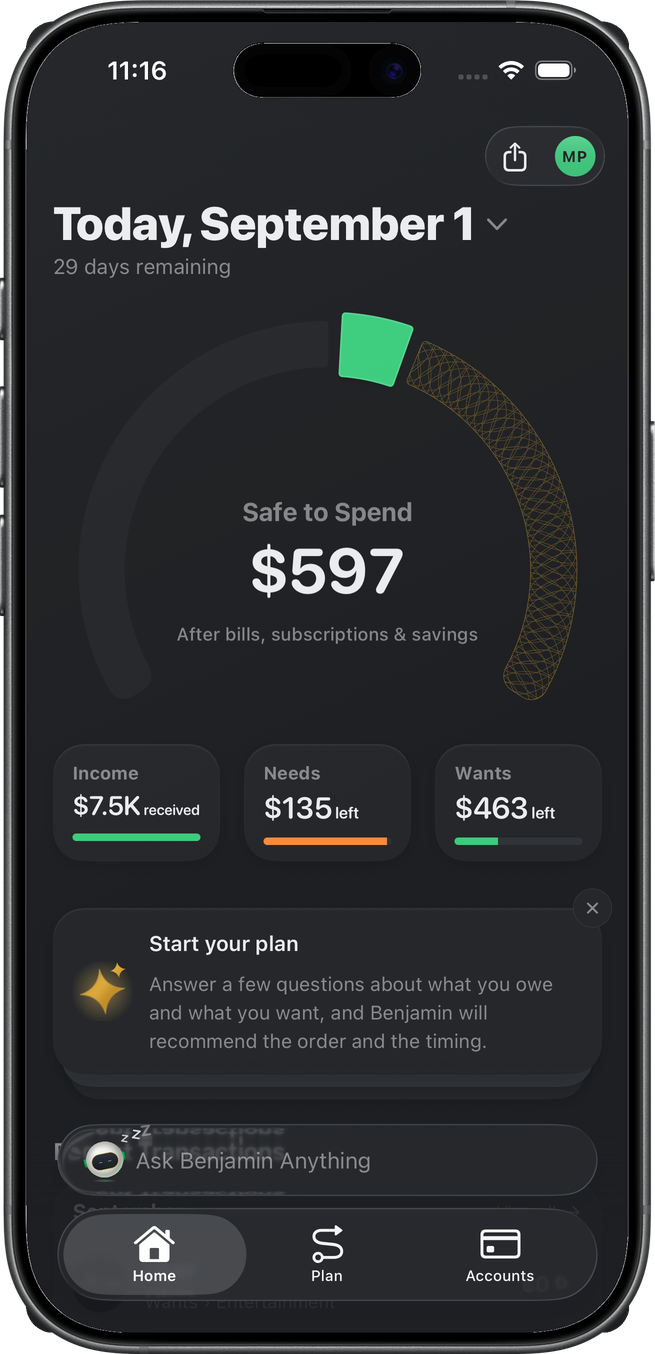
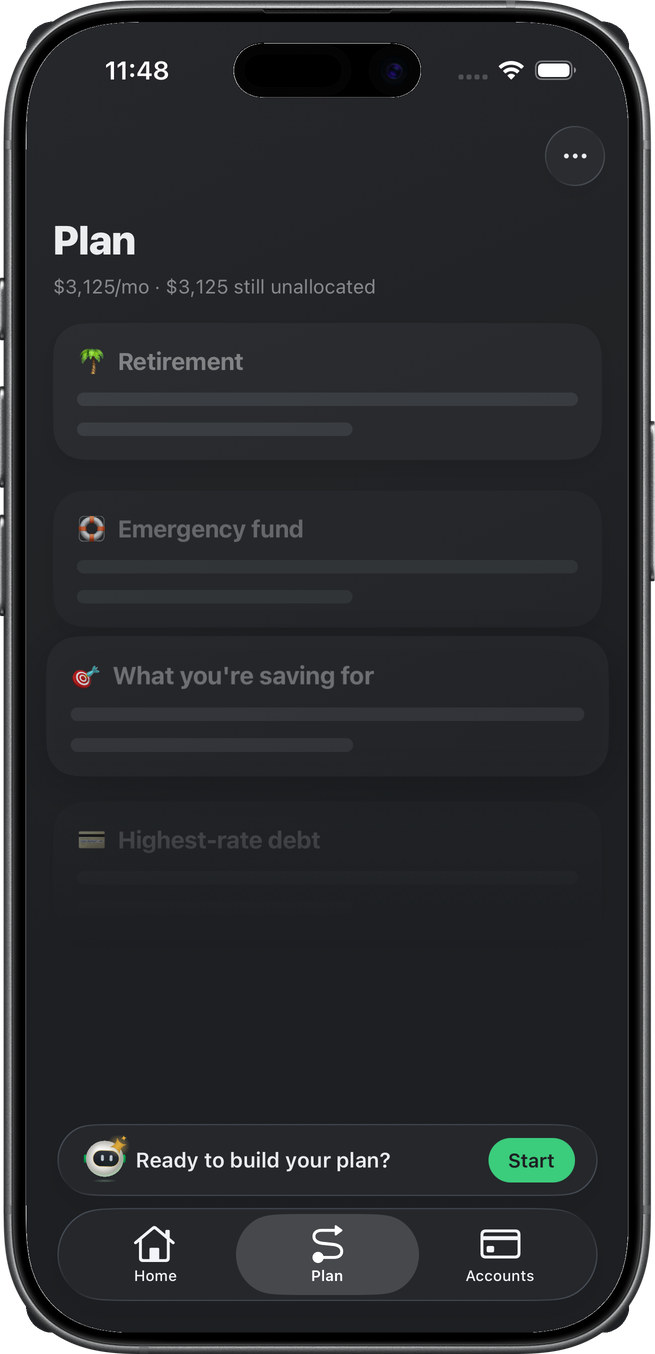
The Home insight Start your plan opens this wizard (Build my plan on the card). The Plan tab shows the same entry when there are no goals and no selected starters: ghost cards and Ready to build your plan? + Start.
Wizard
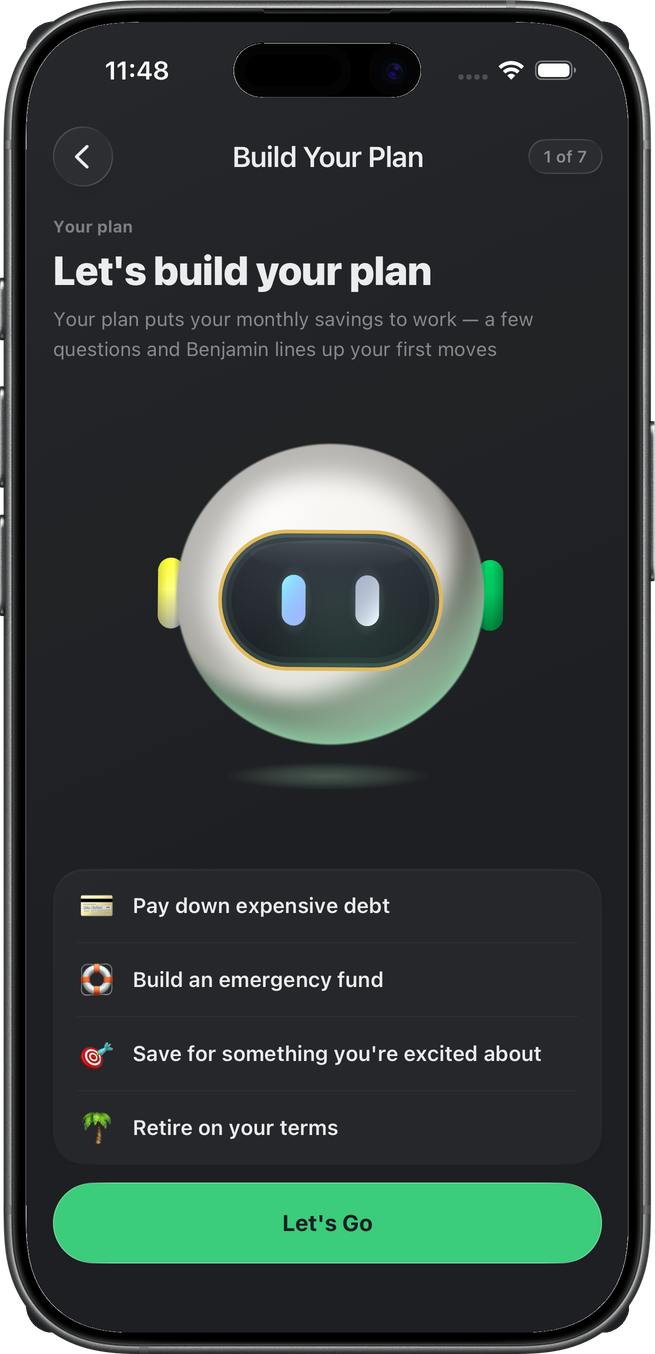
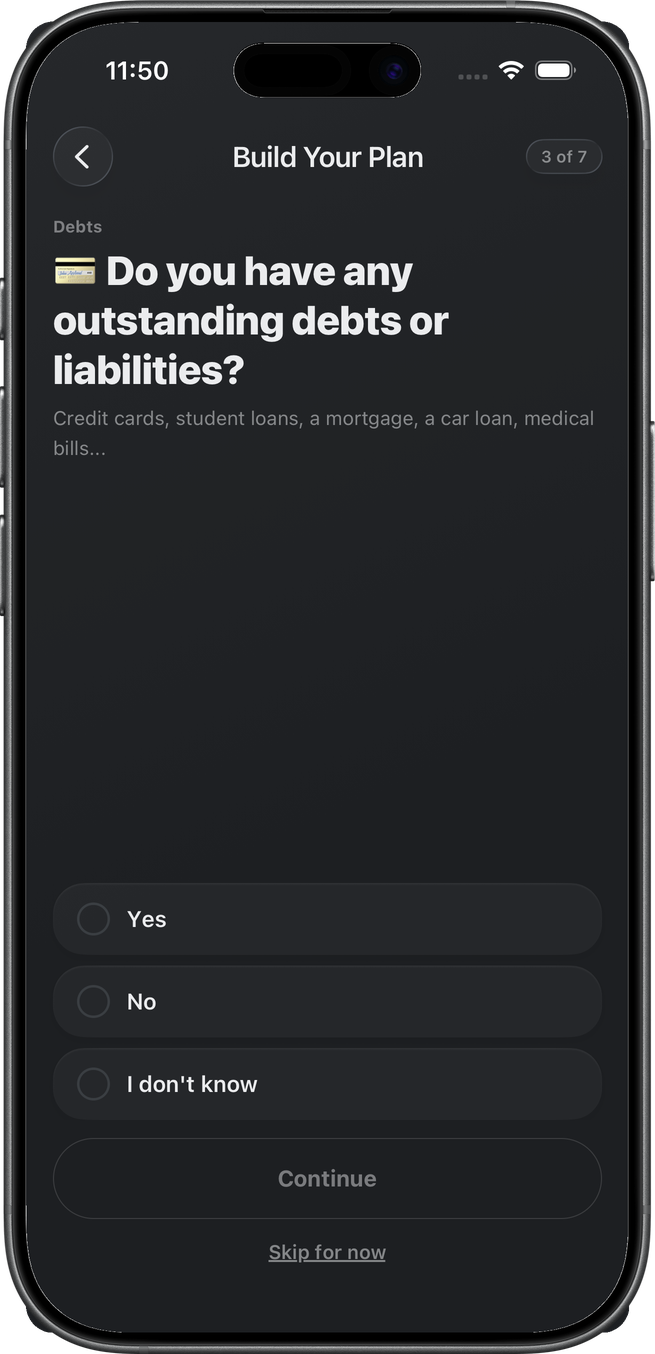
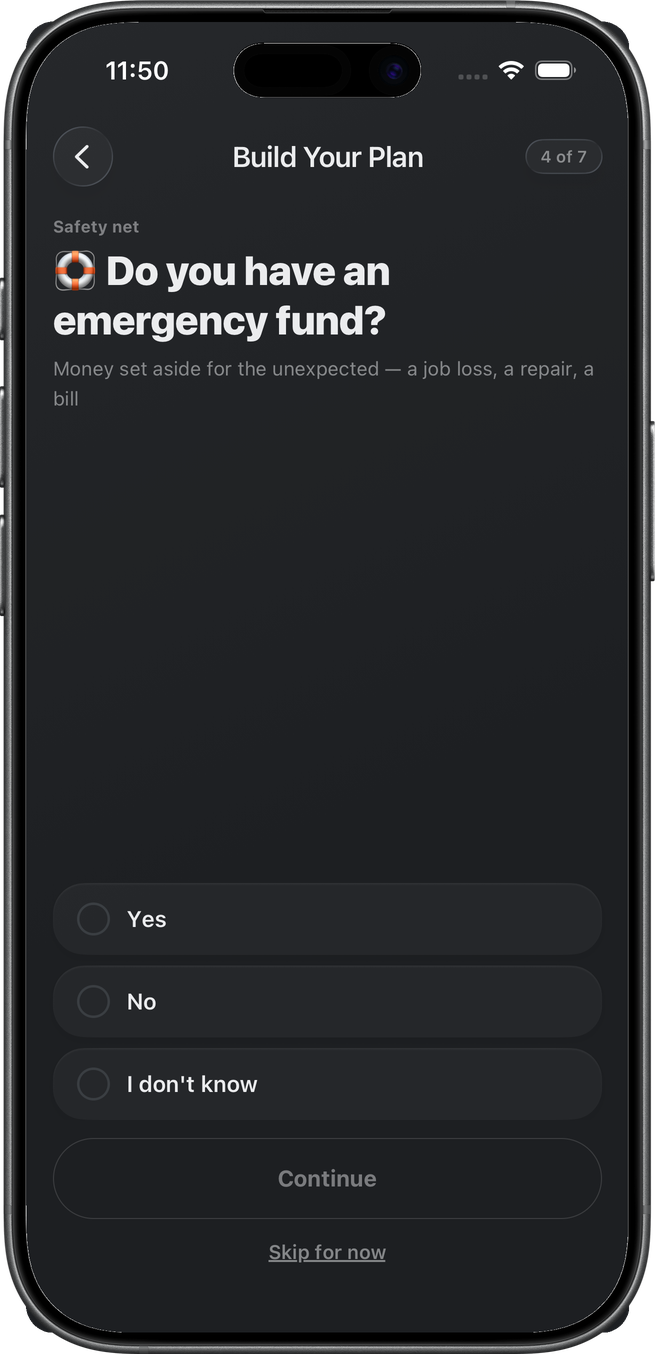
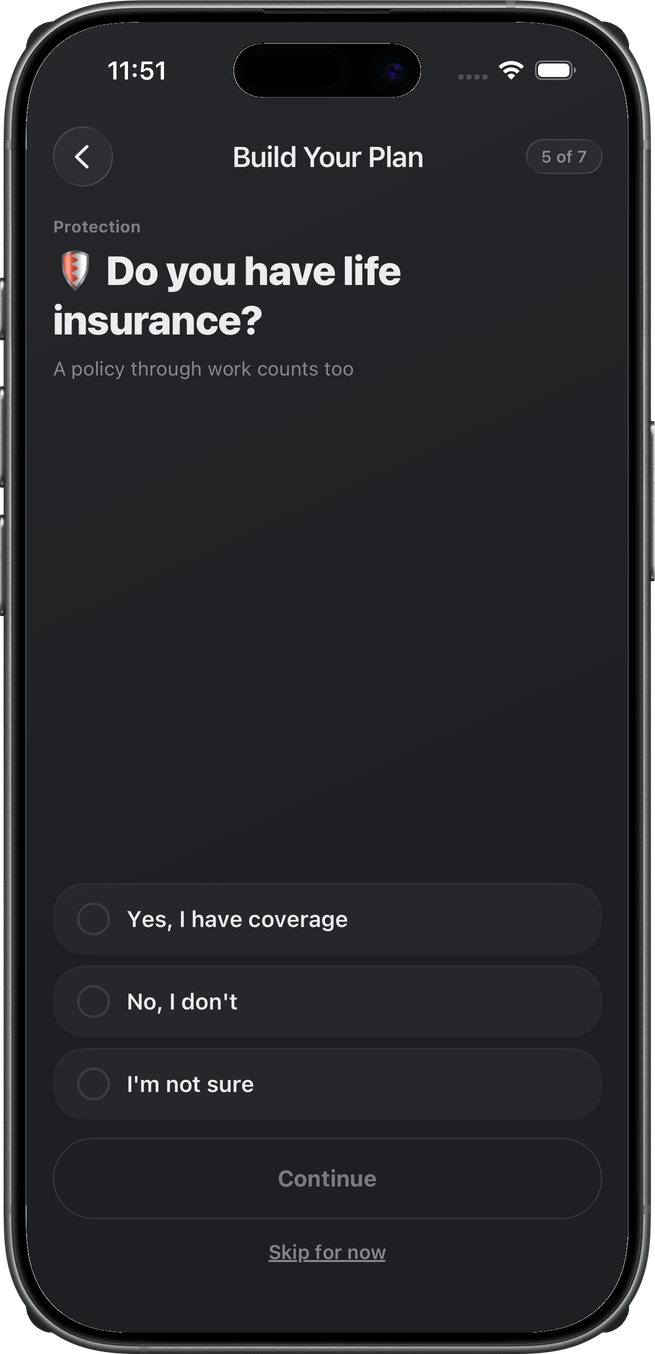
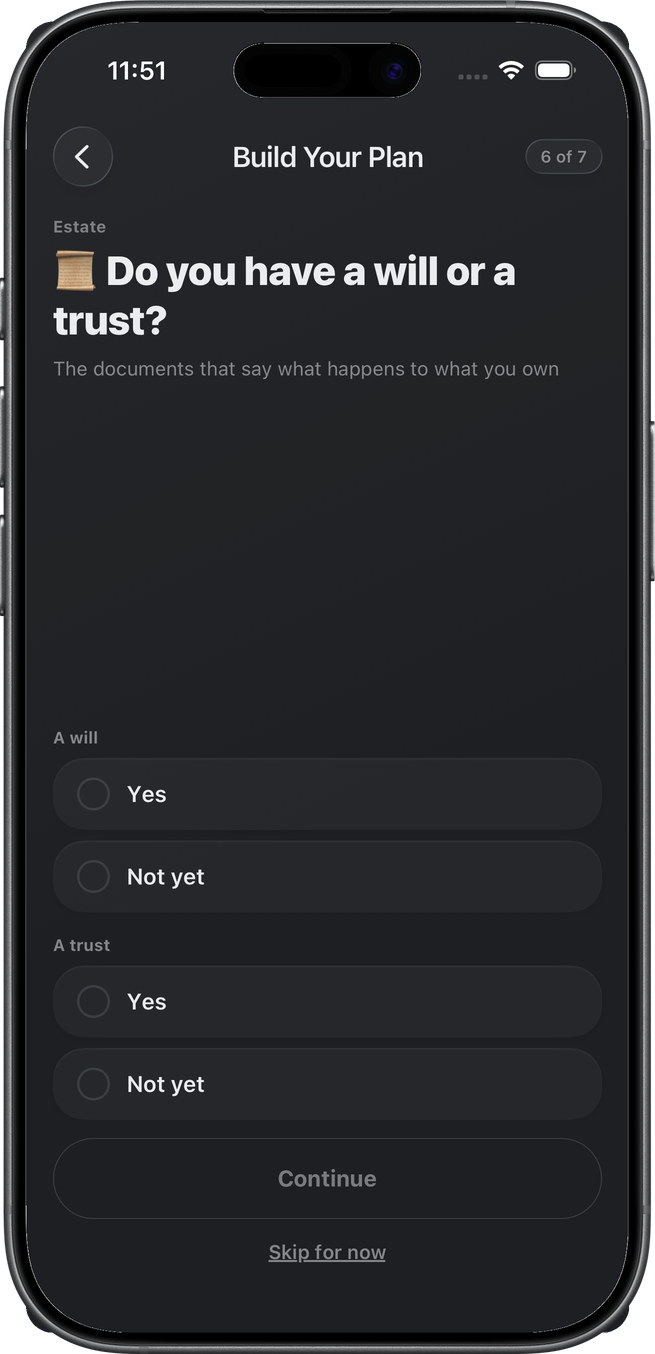
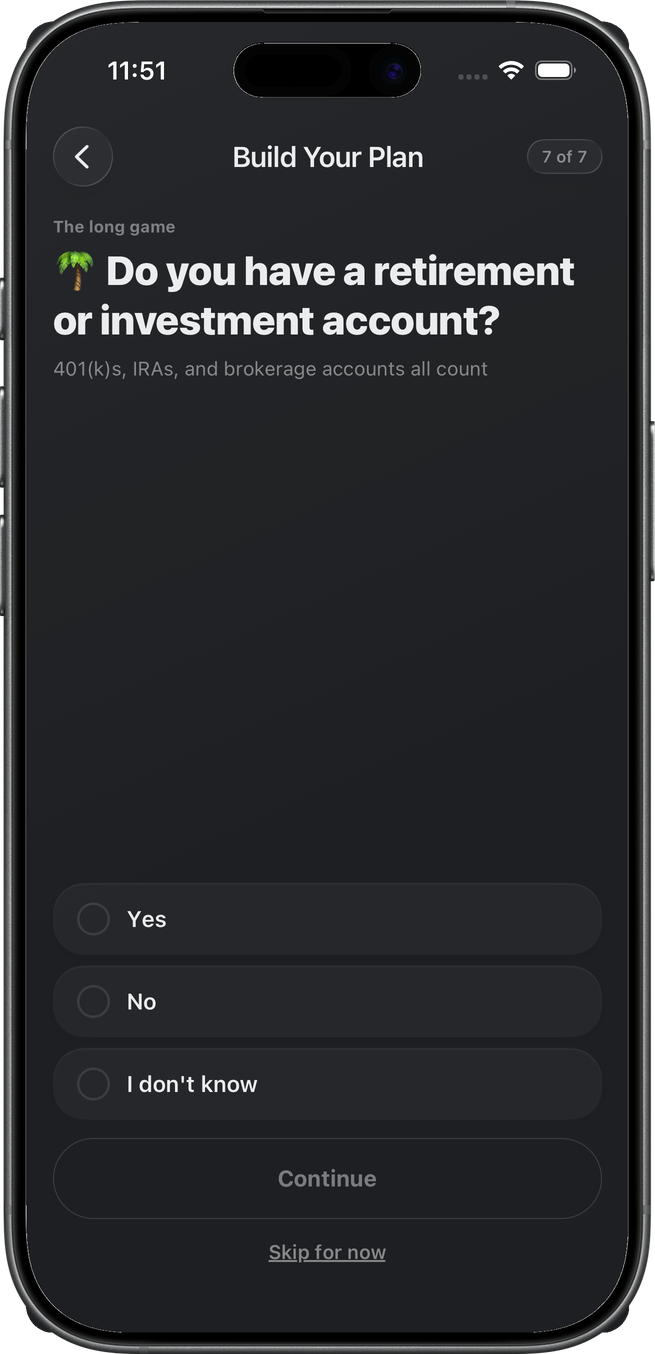
The header pill is X of 7. If linked data already shows expensive debt, the debts step is omitted and the pill is of 6. Every question except intro has Skip for now.
1 — Intro. Benjamin and the four moves the plan will line up. Let’s Go.
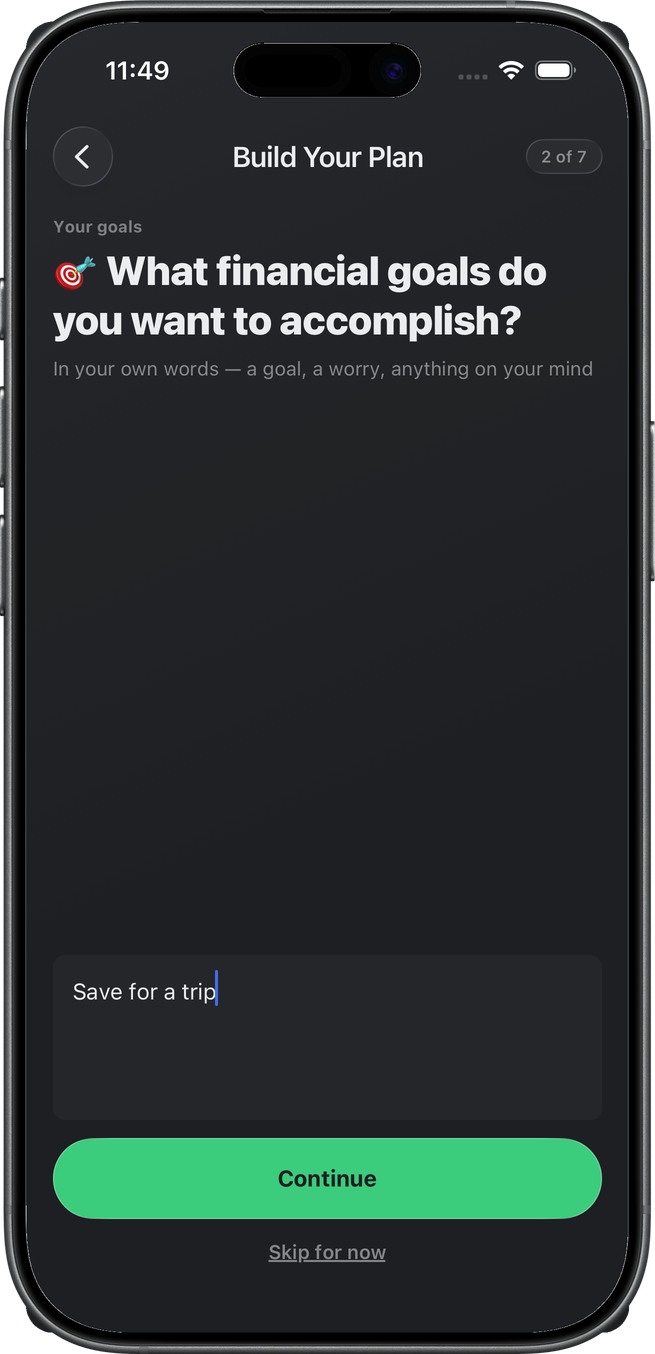
2 — Goals. Free text, in the member’s own words. Continue needs a line. Interpretation runs in the background and shows up on review, not here.
3–7 — Debts, emergency fund, life insurance, will and trust, retirement. Yes / No / I don’t know (life insurance uses “Yes, I have coverage” / “No, I don’t” / “I’m not sure”). Will and trust are two gates on one screen.
Review
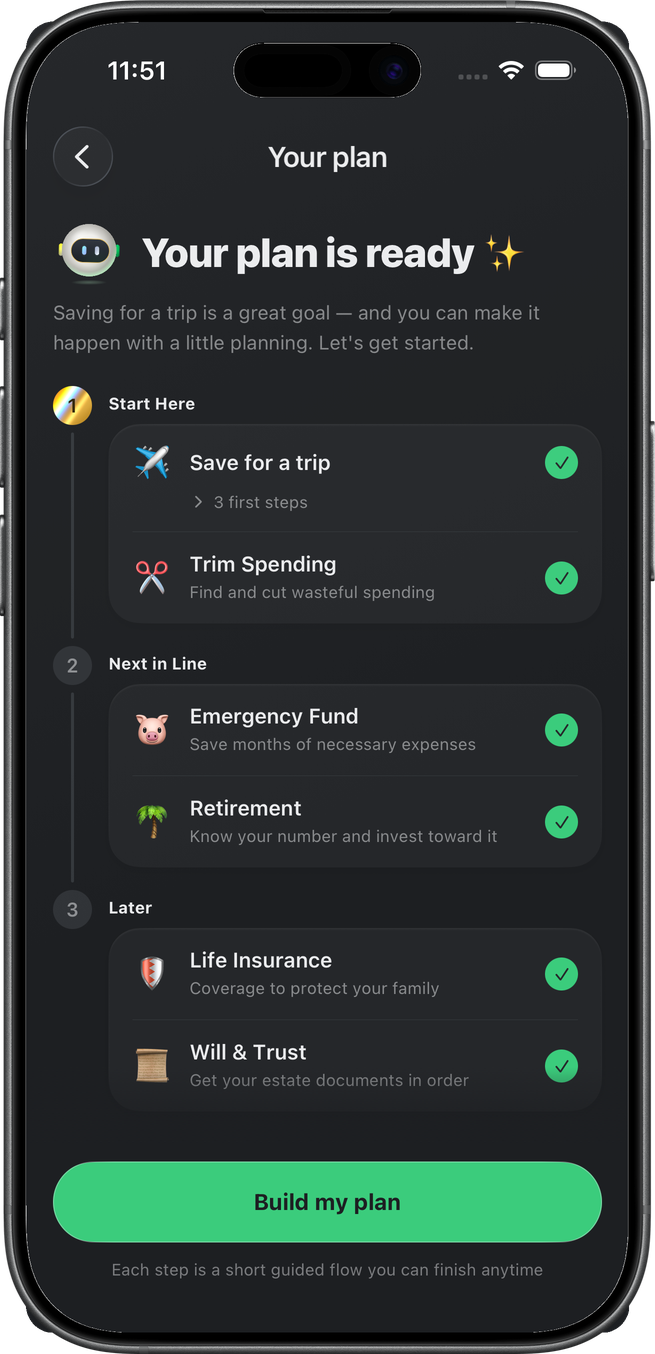
Your plan — no step pill. Benjamin’s line (here: the trip is a good goal). Timeline groups:
- Start Here — inferred goals plus Trim Spending (always proposed)
- Next in Line — Emergency Fund, Retirement (Debt Review only if debts were yes/unsure or bad debt is already on the books)
- Later — Life Insurance, Will & Trust
Every row is a checkbox. Build my plan writes draft goals and selected starters, retires the Home insight, and opens the Plan tab. Do not tap it on this walk.
After that
The Plan tab groups Working On, Next in Line, and Later. Money goals with a monthly allocation (or already funded) sit in Working On; ones without an allocation default to Later until they get a slice (dragging a card overrides this). Each starter card opens its wizard. Monthly allocation of the savings pool is Savings.
Trim Spending does not add a goal card. Each accepted cancel or to-do is its own card in Working On — the merchant logo or category glyph, the action (Cancel Netflix), what it costs today, and a check on the right. Tapping the card ticks it off and moves it to Completed (tap again to undo); a cancel the app verified is ticked for you and locked. These cards drag and move between groups like any other. Budgets from that flow live under Needs and Wants, not here.
Completed sits at the bottom as a fold: the header carries a chevron on the right, and starts collapsed so finished goals and ticked-off trim actions stay out of the way. Tap the header to open or close it; it closes again the next time the tab mounts.
Tapping a goal card opens the goal's page: the goal icon and name sit centered in the header (tap either to change them), over a saved-so-far hero ("$5,000" / "of $10,000 saved") and a flat facts strip — Status (the pace verdict, shown once an allocation exists), Monthly (the allocation; tap to edit), and Target date. Below ride the Projected balance chart with its target line, the Notes card (when one exists), the linked-account card, and + Steps / + Files / + Notes chips. Overflow Add Notes (or the + Notes chip) reveals the Notes card between the chart and the linked account (the same card as on transaction and account detail): type, tap Save, tap the text to edit later; clearing removes it. The goal note was called Description before this pass — same field, new name.